Microsoft releases Windows 11 KB5077241 optional update
Microsoft has released a new optional update for Windows 11 under the code KB5077241. This preview update introduces a wide range of quality-of-life improvements, totaling 29 changes, with a strong focus on usability, system management, and stability rather than security patches.
One of the most noticeable additions is a built-in internet speed testing feature. With this update, users no longer need to visit third-party websites to check their connection performance.
Built-in network speed test arrives
The new Network Speed Test tool allows users to measure internet speed directly from Windows 11. It supports Ethernet, Wi-Fi, and mobile connections. Users can access the test quickly through the Taskbar or the Quick Settings panel.
As a result, checking download and upload speeds becomes faster and more convenient. This feature is especially useful for troubleshooting network issues or verifying connection quality without leaving the operating system.
BitLocker stability and system recovery improvements
Microsoft has also addressed long-standing issues related to BitLocker. The update improves system stability after entering a BitLocker recovery key, resolving cases where devices could freeze or become unresponsive during startup.
In addition, Quick Machine Recovery is now enabled automatically on Professional editions of Windows 11. This change strengthens recovery options for business and advanced users, reducing downtime in the event of boot failures.
Sysmon arrives as a native Windows feature
For the first time, Microsoft has integrated System Monitor, also known as Sysmon, directly into Windows 11. Although disabled by default, Sysmon now exists as a native component rather than a separate download.
This marks an important step for IT administrators and power users. Sysmon allows detailed monitoring of system activity, including process creation, network connections, and file changes. With native integration, system-level monitoring becomes more streamlined and secure.
File Explorer shortcuts and performance upgrades
KB5077241 introduces a new shortcut for File Explorer. Users can now open a new File Explorer window instantly by holding the Shift key or clicking the middle mouse button. This small change significantly improves multitasking and file management efficiency.
Performance has also been improved when waking the system from Sleep mode. Even with heavy applications running in the background, Windows 11 should now resume faster and more smoothly.
WebP wallpapers and visual refinements
The update expands customization options by allowing WebP image files to be set as wallpapers directly. Users can apply these images either through the Settings app or by right-clicking the file itself.
Microsoft continues to roll out visual refinements as well. The Start menu design and battery icon clarity have both received incremental updates. These changes began rolling out late last year and continue to expand with this release.
Better support for Arm64 and enterprise tools
For users running Windows 11 on Arm64 devices, Microsoft has enabled full support for Remote Server Administration Tools. This allows IT administrators to manage Active Directory, DNS, and DHCP services directly from Arm-based systems.
Additionally, Microsoft has announced plans to replace Secure Boot certificates that will expire in June 2026. This proactive change ensures long-term system compatibility and security readiness.
What users should know before installing
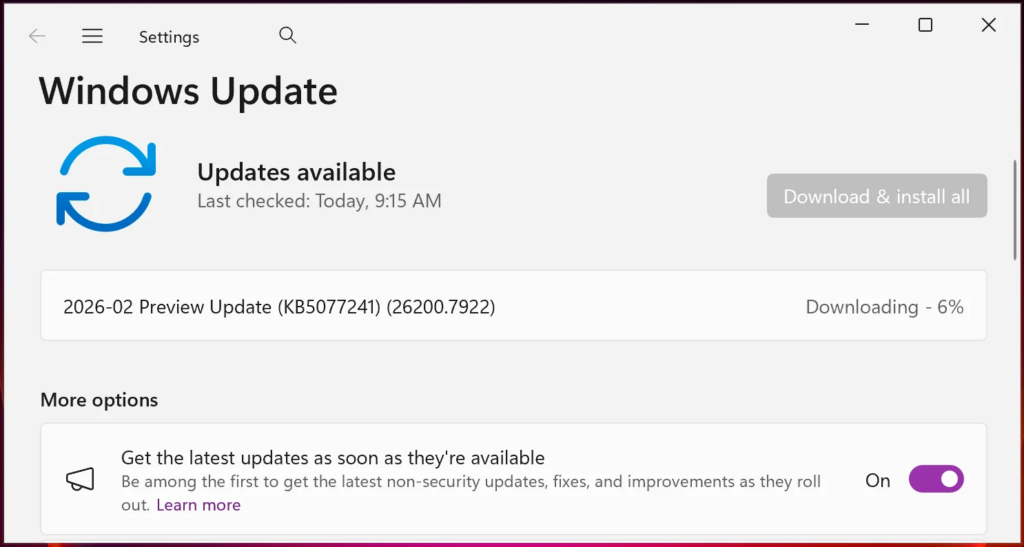
KB5077241 is an optional preview update focused on quality improvements and bug fixes. It does not include security updates, which remain part of regular monthly patches. Users who want early access to new features can install it by navigating to Windows Update and selecting Download and install.
Overall, KB5077241 enhances Windows 11 by improving everyday usability and professional system management. For users affected by BitLocker issues or those interested in the new network speed test and monitoring tools, this update is well worth trying.
Origin: Bleepingcomputer